
LoyalKit Cards for small business
One loyalty program for Apple Wallet and Google Wallet
Offer iPhone and Android customers the same loyalty journey while their pass format is handled by the Wallet platform they use.
LoyalKit lets a business run one loyalty program for customers who use Apple Wallet on a compatible iPhone and customers who use Google Wallet on a supported Android phone. Everyone starts at the same shop join QR code. LoyalKit then offers the Wallet flow available for that customer's device.
The customer scans your shop's join QR code.
They add the branded card to Apple Wallet or Google Wallet.
Staff add stamps or points and the Wallet pass updates.
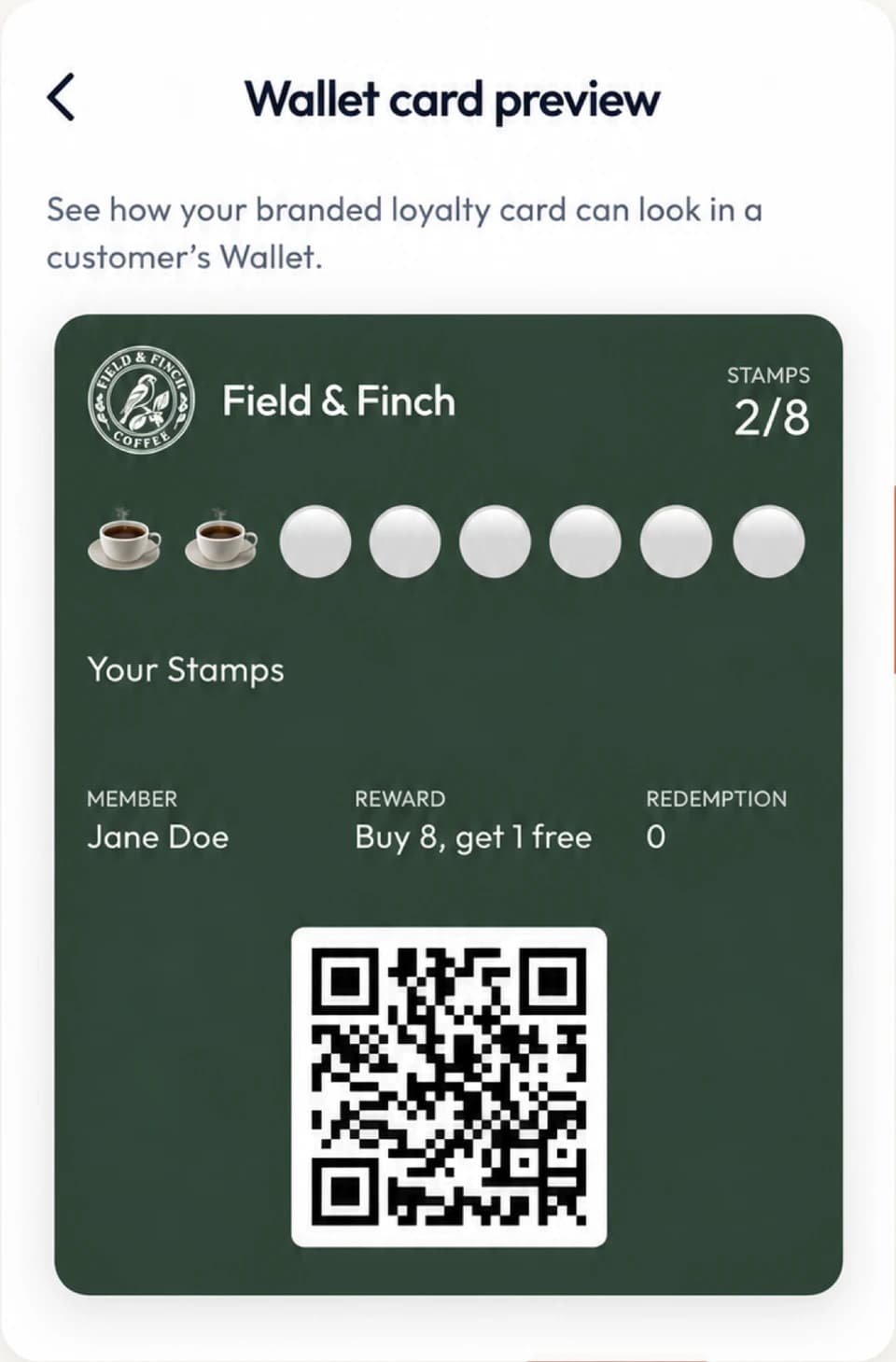
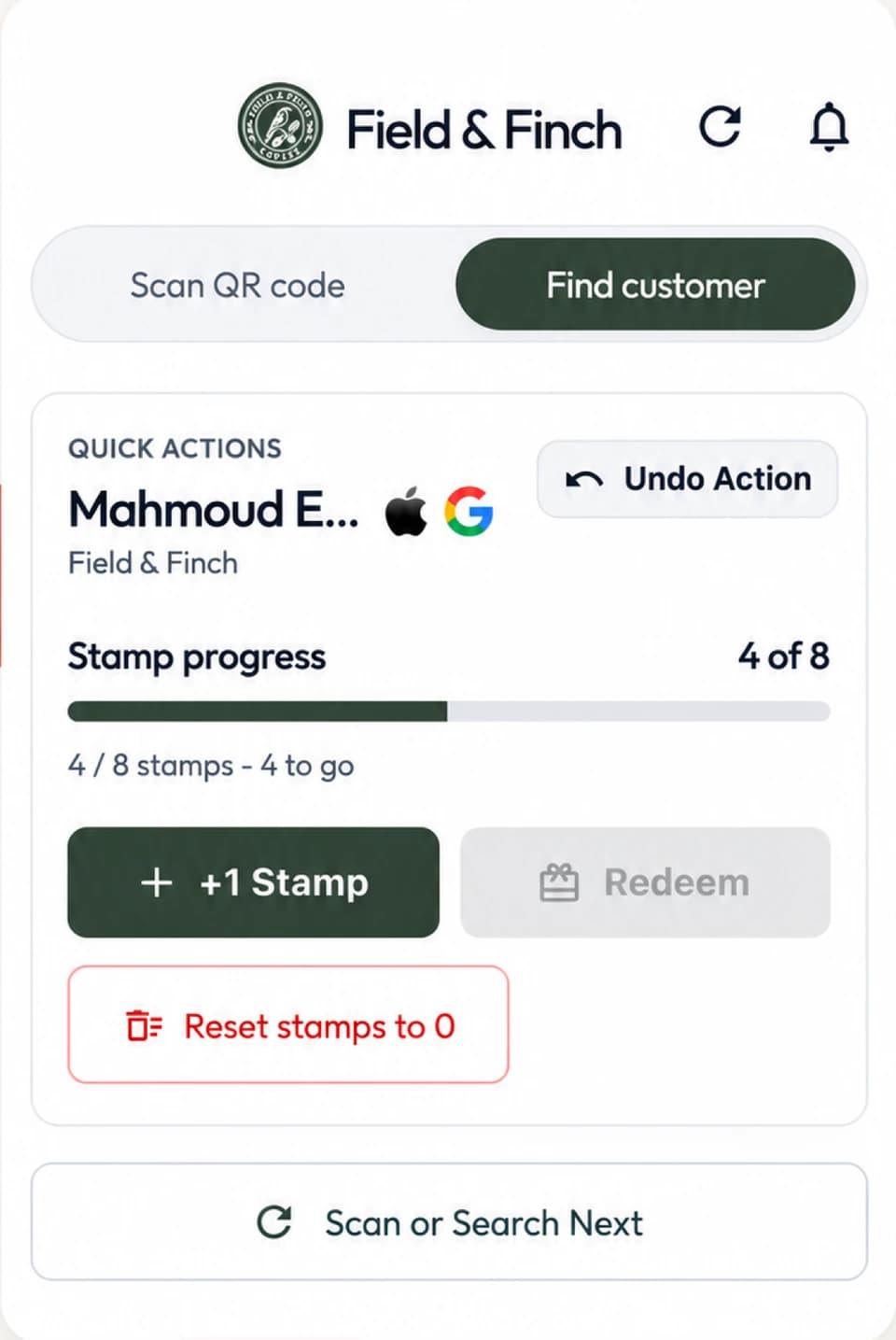
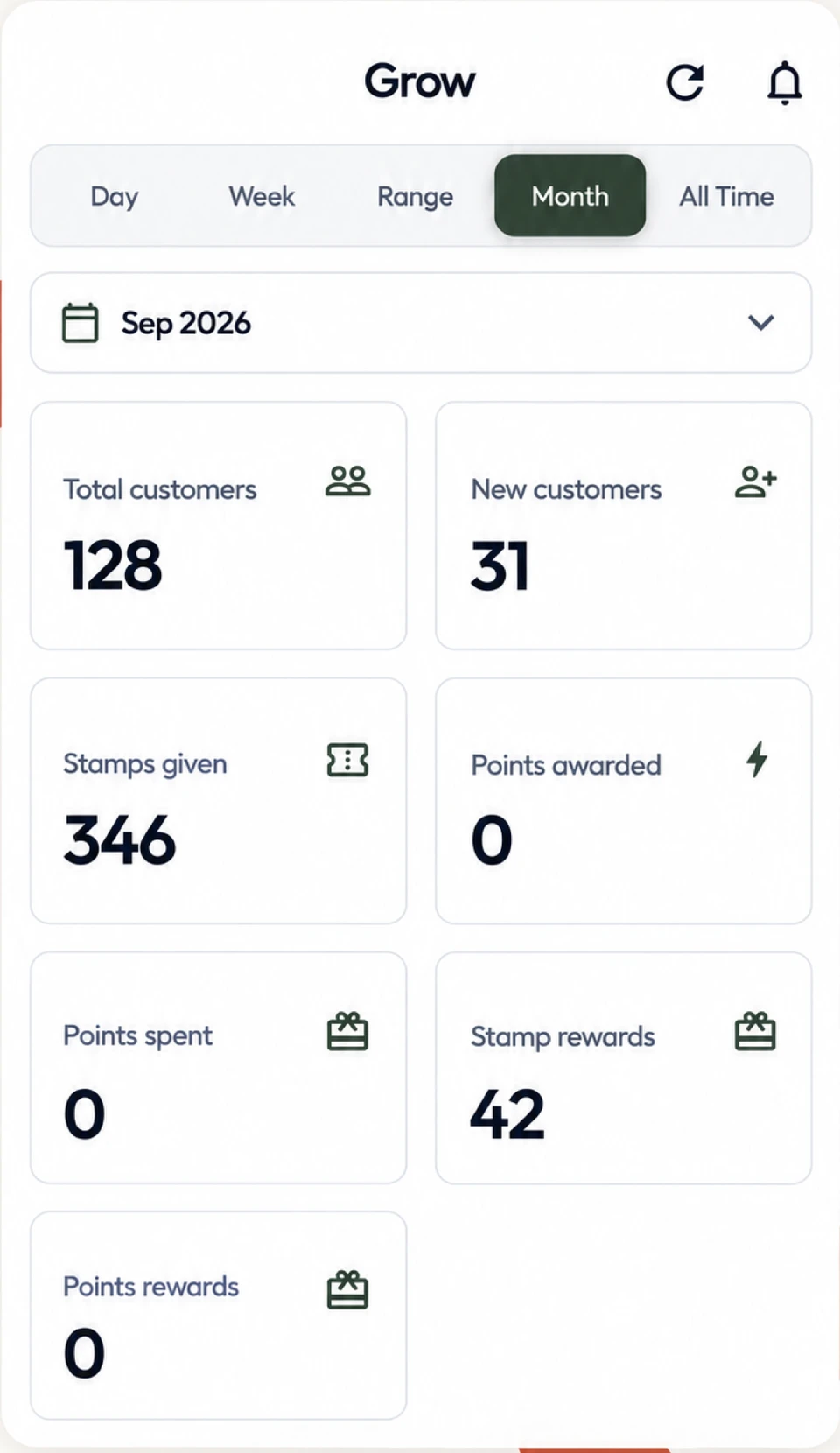
One QR code, two supported Wallet journeys
The join QR belongs to the shop, not to Apple or Google. A customer scans it with their phone camera and opens the LoyalKit signup page. After signup, a compatible iPhone can continue to Apple Wallet and a supported Android phone can continue to Google Wallet.
The business does not need two counter signs or separate reward rules. Stamps, points, rewards, staff permissions, and customer activity remain part of the same LoyalKit program.
| Journey step | Compatible iPhone | Supported Android phone |
|---|---|---|
| 1. Begin | Scan the shop join QR | Scan the same shop join QR |
| 2. Sign up | Enter the business's requested signup details | Enter the same requested signup details |
| 3. Save | Use the Apple Wallet save flow | Use the Google Wallet save flow |
| 4. Present | Open the loyalty pass and show its QR | Open the loyalty pass and show its QR |
| 5. Earn or redeem | Staff use the LoyalKit app on iOS or Android, or the web dashboard | Staff use the same iOS or Android app or web-dashboard workflow |
| 6. Update | The Apple Wallet pass receives the new loyalty state | The Google Wallet pass receives the new loyalty state |
What stays consistent across platforms
The pass can carry the shop identity, customer first name, loyalty balance or stamp progress, reward information, and an individual QR code for staff identification. Authorized staff follow the same earn, correction, and redemption rules regardless of which supported Wallet holds the pass.
The separate digital loyalty card overview explains the business controls and complete operating model. For a fixed visit or purchase threshold, see the digital punch card guide.
Coffee shops can see the same workflow applied to a busy counter in the coffee shop loyalty program guide.
What differs between Apple and Google
Apple and Google decide how passes are added, displayed, organized, and updated inside their Wallet apps. Button wording, visual layout, account requirements, available regions, and system behavior can differ. LoyalKit aligns the program data and shop branding within each platform's pass format, but does not claim that the two Wallet experiences are visually identical.
Apple describes loyalty passes in its official Wallet overview. Google documents loyalty objects and classes in the Google Wallet documentation. Those platform requirements can change, so a business should test its published join flow on real supported devices.
How pass updates work
The Wallet pass displays loyalty state managed in LoyalKit. When an authorized staff member adds stamps or points, corrects an eligible action, or redeems a reward, LoyalKit updates the underlying customer record and generates the corresponding Wallet update.
An update depends on the Wallet platform, the device, account state, connectivity, and notification settings. The staff activity record in LoyalKit remains the source of the loyalty action. A business should not promise that every customer will see an instant lock-screen notification.
Can the pass appear when a customer is near the shop?
When a shop has valid branch locations saved, LoyalKit includes up to 10 coordinates in its Apple and Google Wallet pass data. Apple may suggest the relevant pass on the Lock Screen, while Google Wallet may show a Nearby Passes notification. Availability depends on the customer's Wallet notification and location settings and each platform's delivery timing.
Read how Apple and Google Wallet location alerts work near a shop for platform behavior, permission requirements, setup guidance, and published research and case-study results.
A loyalty pass is not a payment credential
Saving a loyalty pass in a Wallet app can make it easy to confuse loyalty with payment. They are separate in LoyalKit:
- The pass does not contain the customer's credit- or debit-card number.
- LoyalKit does not authorize or process the customer's purchase.
- A pass QR identifies the loyalty record; it is not a checkout barcode for the sale total.
- Staff record the qualifying loyalty action separately after applying the shop's written rule.
- LoyalKit does not use NFC or tap-to-pay to add stamps or points.
The loyalty program without POS integration guide compares this manual workflow with a POS-integrated program.
Staff tools are not the same as customer devices
Customers may carry a supported Apple Wallet or Google Wallet pass. Staff scanning is provided through the LoyalKit app on iOS and Android. Authorized staff can also use the web dashboard to find a customer and perform allowed actions.
This distinction should be part of staff training. Staff can scan either supported Wallet pass with the LoyalKit app on iOS or Android, regardless of the customer's phone platform.
Pricing for both Wallet platforms
Both supported Wallet pass formats are included in the standard LoyalKit plans. After a 14-day trial, the current web price is per month or per month. Prices exclude tax. Applicable tax is calculated at checkout.. There is no separate Apple Wallet or Google Wallet plan. Review the complete LoyalKit Cards pricing details.
Do I need separate QR codes for Apple and Google Wallet?
No. A LoyalKit business uses one shop join QR. The join page offers the Wallet flow available for the customer's supported phone.
Will both passes look exactly the same?
No. Apple and Google control their respective Wallet interfaces. LoyalKit keeps the shop identity and loyalty information aligned within each platform's pass format.
Can staff use the same workflow for both?
Yes. Staff use the LoyalKit scanner app on iOS or Android, or the authorized web dashboard, for either supported customer pass.
Can customers pay with the loyalty pass?
No. A LoyalKit pass is for loyalty identification and progress. It does not store payment-card details or process a sale.
Does the pass use NFC?
No. The customer presents the QR code on the pass for staff identification.